
Background Remover
Remove the background of an image in AI Studio. The tool shows its credit price per run before you press Generate.
Image Background Remover
Image Background Remover
9 credits per run at the default settings (the shortest or lightest run; longer or larger runs cost more). Input: image (1 image per run).
Real runs by the Twistavo team
Results of runs the team made, with the exact prompt and settings. Files are shown as delivered unless the output line says otherwise. The price is the server quote for the same run today.
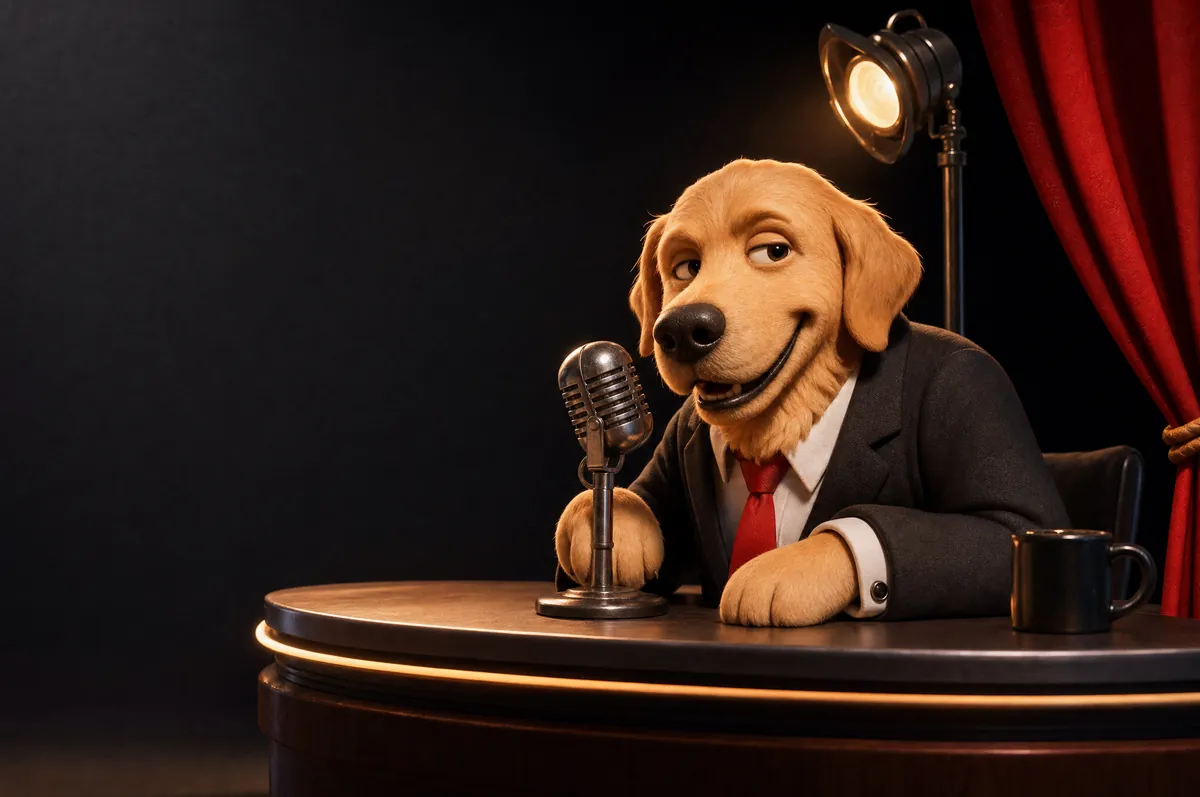
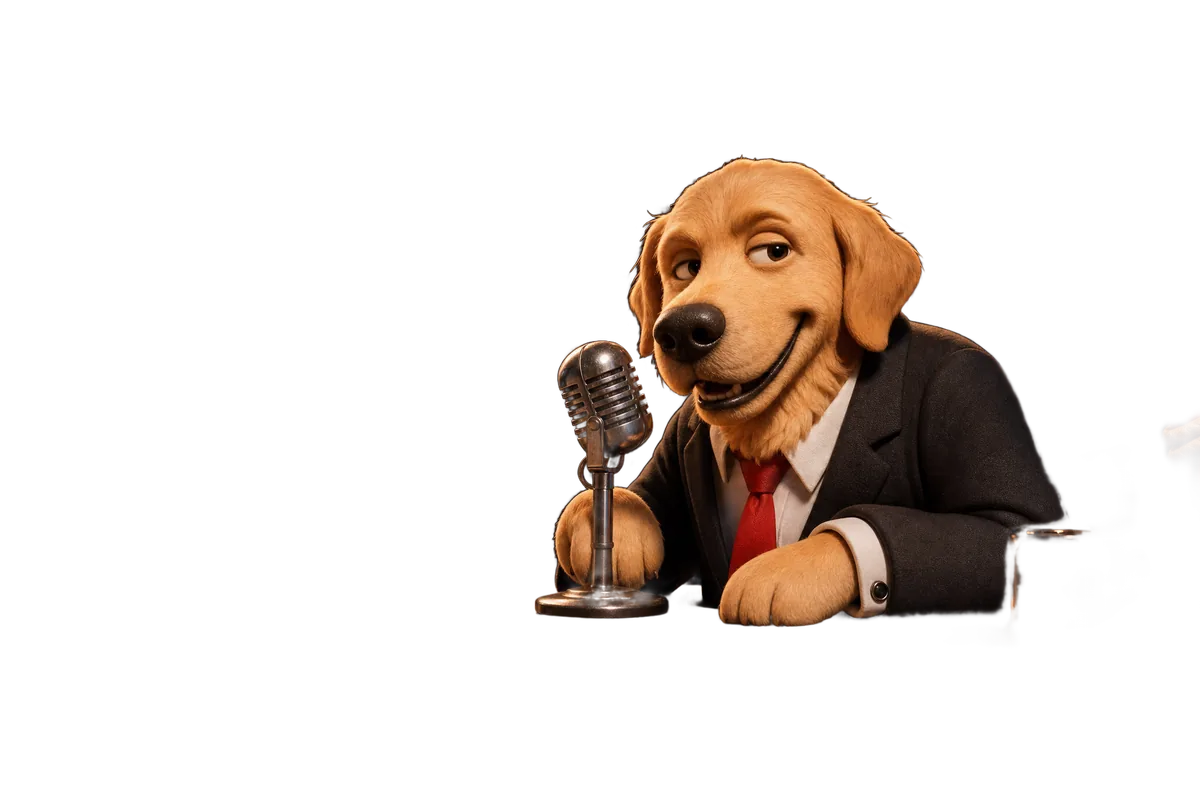
- Input
- A 3D claymation render made with GPT Image 2 by the team: a golden retriever talk-show host in a suit behind a desk, with a chrome microphone, a mug, a spotlight and red curtains on a dark stage (PNG, 2048 x 1360).
- Tool and model id
- Image Background Remover (
image-background-remover) - Settings
- none (the tool takes one image, no prompt and no options)
- Output
- PNG with a transparent background, same size as the input (2048 x 1360); shown here as a 1200 x 797 WebP
- Price
- 9 credits for this run
- Run date
- 2026-09-17
- Kept: the dog, its fur outline, the suit, both paws and the microphone with its stand.
- Removed: the dark stage, the curtains, the spotlight and the desk.
- Left behind: part of the mug next to the right paw and a faint trace further right. Check the cut-out at full size before you use it, and crop or erase what you do not want.
- The edge is mostly hard: loose fur strands end in a clean line rather than a soft fade. A thin dark line from the original shadows follows part of the outline; it shows on a light background.
Files it takes and where the result goes next
- Input: one image per run, JPEG, PNG, WEBP, GIF, up to 10 MB.
- Pick a picture where the subject stands apart from the background: in the example above, the mug touching the paw partly stayed in the cut-out.
- Open the result at full size on a light and on a dark background before you use it: leftover fragments and dark outlines show there.
- Use the cut-out as a reference image in AI Studio to place the subject in a new scene: Nano Banana (up to 8 reference images) or GPT Image 2 (up to 8 reference images).
How to run it in the studio
- Open AI Studio and choose the Image tab.
- Pick a model and give it what it takes: the image whose background you want removed, from the Image tools group of the model list.
- Set the options, then press Generate: the button shows the credit price first.
Questions
How much does one run cost?
Each model above shows its credits per run at its default settings. In AI Studio the Generate button shows the exact price of your settings before the run starts.
Other tools
- Cinema: Storyboard, camera directions, shot by shot
- Motion Control: Guide a character image with a reference video
- Audio-guided video: Guide a video with an image, footage and audio
- Marketing Studio: Product shots, campaigns, UGC briefs