
Use case
AI Body Swap Video: Replace a Person in a Video
Twistavo is an AI video studio for character swap: replace a person in a real video from 1 to 4 photos; plans from $3.99/month. An AI body swap replaces a whole person in your video, not just the face: upload your clip to Scene Recast, add one photo of the new person and name who they replace. They take over with their own face, hair, build and clothes while the camera, the set, the movement and the sound stay, in a new video saved to your private library. Scene Recast charges from 18 (Standard 720p) to 172 (Max 1080p) credits per billable second: a 5-second clip in Standard 720p costs 90 credits and a 10-second clip costs 180 credits. Only 1 image is free after signup; videos need a paid plan.
Open the AI character swap toolUpdated
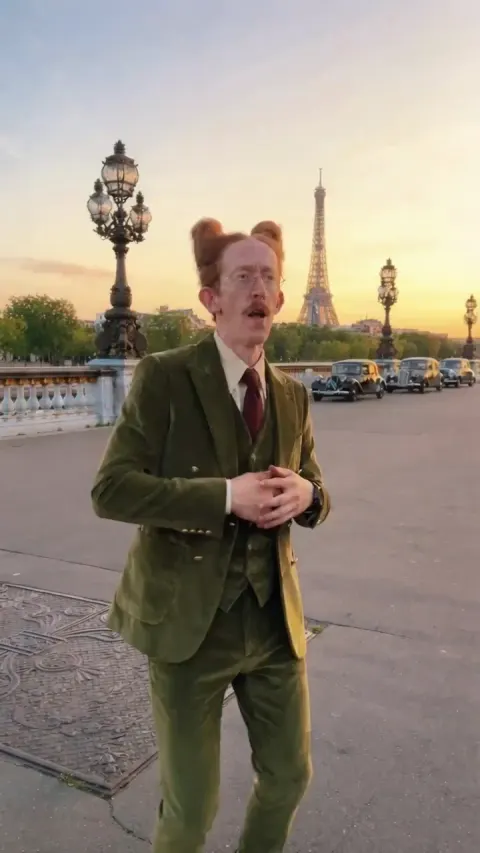
Scene Recast specs
| What it replaces | The whole person you name: face, hair, build and clothes follow the photo you add, which can also show a character you designed. |
|---|---|
| What stays | The camera move, framing, set, lighting, body movement, timing and original audio of your clip, and everyone you did not name. |
| Clip length | 4 seconds to 2 minutes in Standard 720p, less in other tiers, as little as 17 s in Max 1080p; clips over 15 seconds are made in parts and joined into one video. |
| Input formats | MP4 or MOV, up to 200 MB, 720 to 3,840 pixels per side. |
| Reference photos | One photo per person, up to 4 people per clip. |
| Output | A new video in the orientation of your clip, at 480p, 720p, 1080p (720p by default); your upload is never overwritten. |
| Price per second | 18 credits per billable second at the default settings in Standard 720p (every tier: from 18 (Standard 720p) to 172 (Max 1080p)): from $0.19 (Agency plan) to $0.40 (Mini plan) depending on the plan. |
| 10-second clip | 180 credits: from $1.91 to $3.99 depending on the plan. |
Longer videos: Scene Recast takes clips of up to 2 minutes in Standard 720p, less in other tiers, as little as 17 s in Max 1080p. Cut longer footage into clips of 2 minutes or less, recast each one with the same photos, and join them in your video editor.
How to replace a person in a video
- Upload a clip you filmed or may use as an MP4 or MOV file of 4 seconds to 2 minutes in Standard 720p, less in other tiers, as little as 17 s in Max 1080p, or open a sample scene.
- Add one clear photo per person you want to bring in.
- Say who replaces whom, for example the man in the grey coat or the person on the right.
- Select Review price and check the credit price for the whole clip next to your balance.
- Confirm the rights and consent statement and select Generate; your upload stays untouched.
- Download the new video from your private library.
Real results
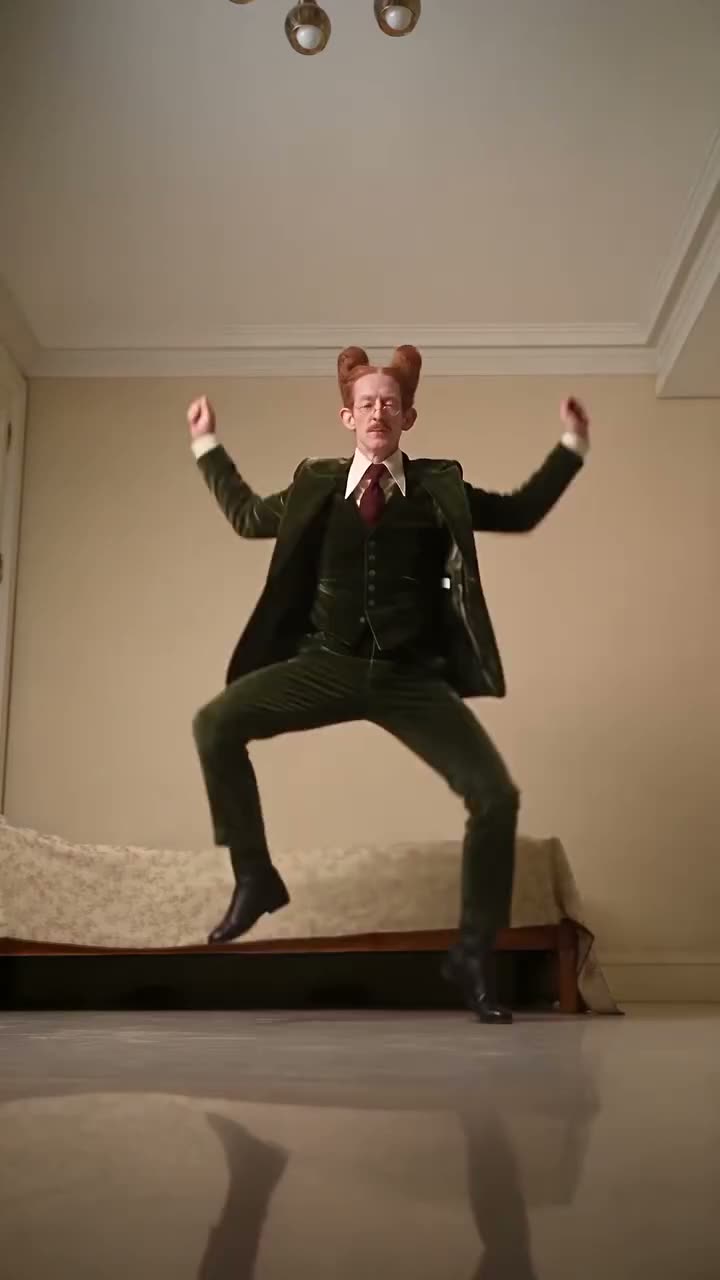
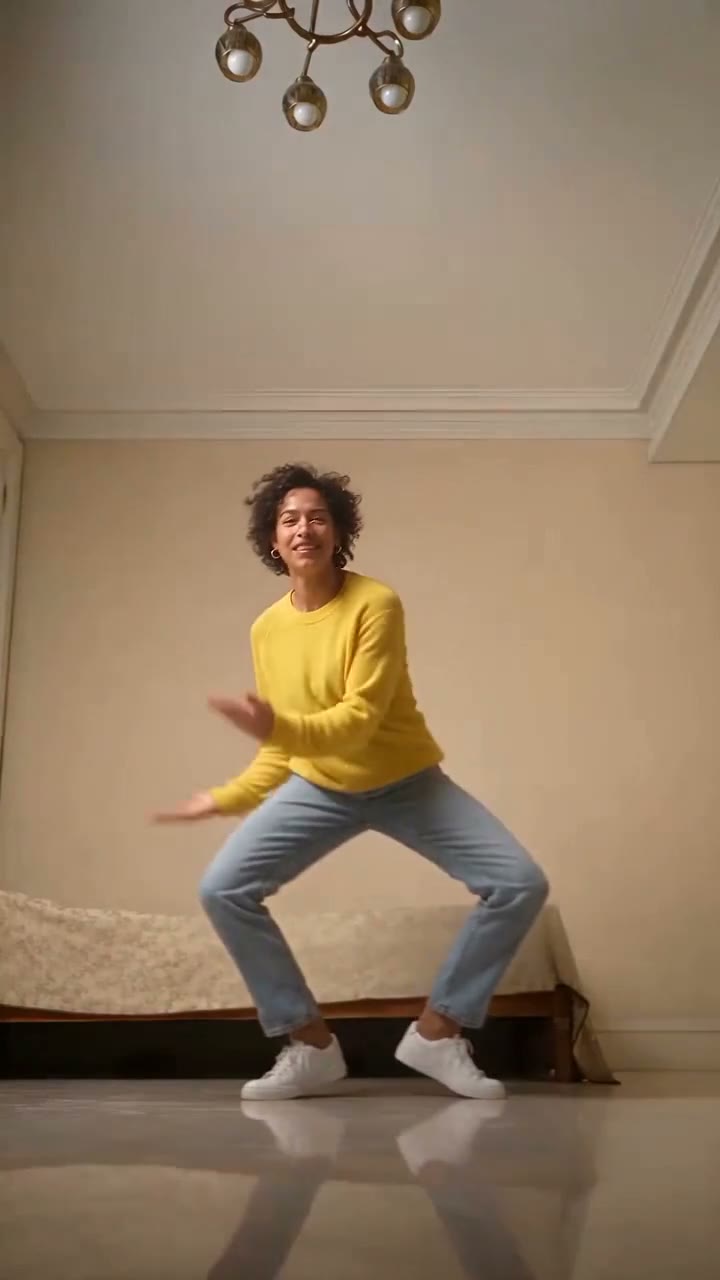
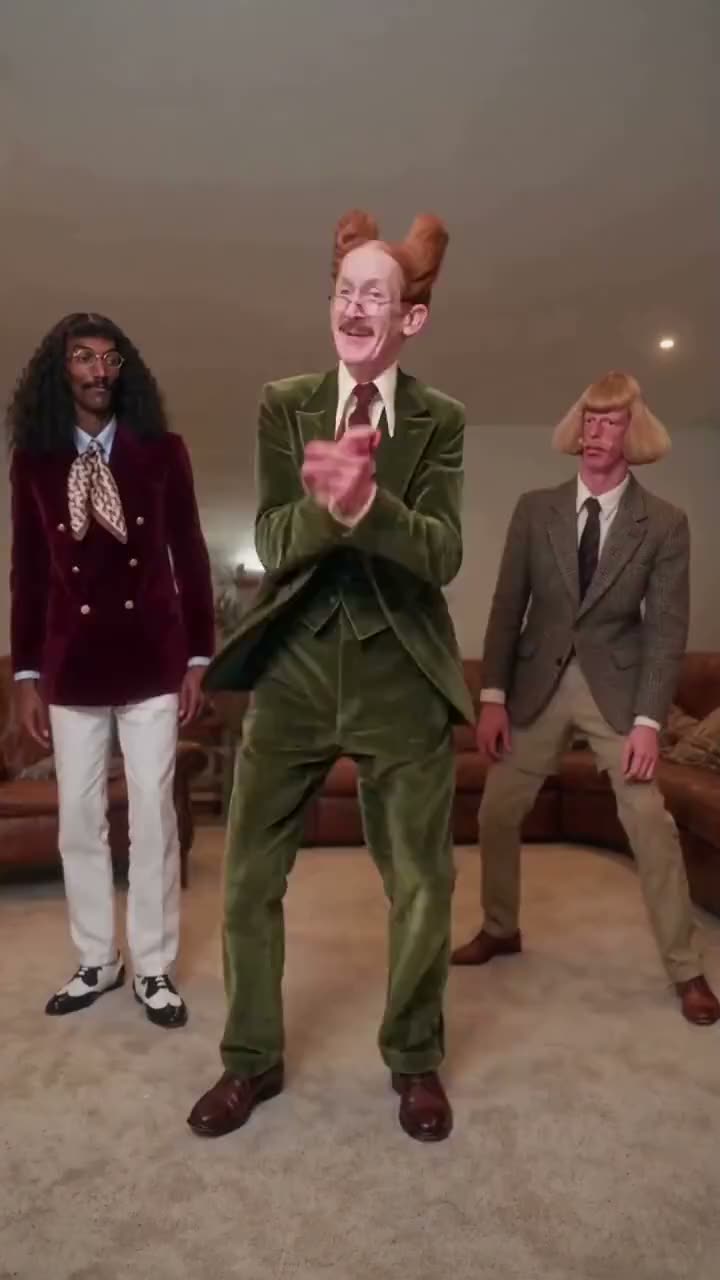
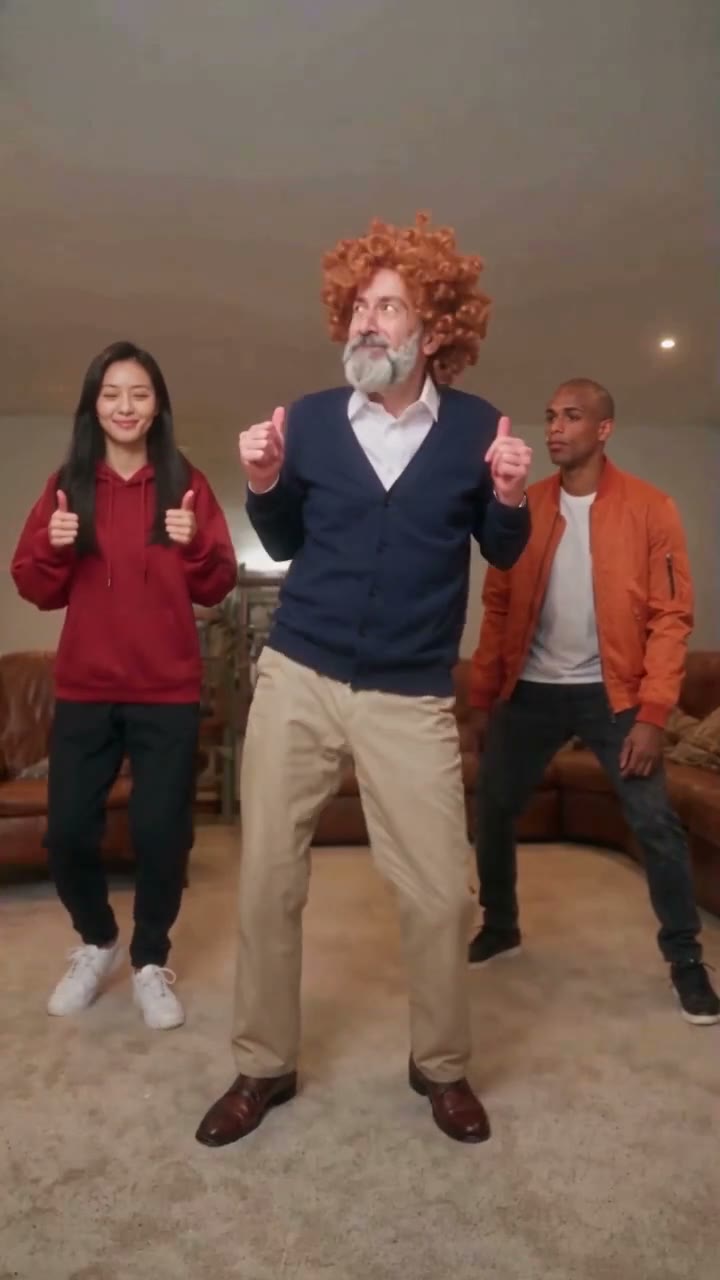
Video tutorial
How to Replace a Person in a Video with AI (Keep the Camera and Audio)
What it is for
Most clips only need one change: a friend who could not make the shoot, a placeholder stand-in in a pitch video, a character you designed stepping into footage you already filmed. Replacing a single character keeps everything else you worked for, from the framing and the light to the timing of each gesture and the room tone. The rest of the cast is left exactly as filmed, so the swap reads as one continuous take rather than an edit.
Limits to know
- Length: 4 seconds to 2 minutes in Standard 720p, less in other tiers, as little as 17 s in Max 1080p per clip; longer footage has to be trimmed before upload.
- File: MP4 or MOV, at most 200 MB, between 720 and 3,840 pixels on its sides.
- People: one character is the usual case, and up to 4 can be replaced in the same clip, one photo each.
- Clips longer than 15 seconds are generated in parts and joined back into a single video.
Price
Scene Recast charges from 18 (Standard 720p) to 172 (Max 1080p) credits per billable second: a 5-second clip in Standard 720p costs 90 credits and a 10-second clip costs 180 credits. The exact price of your clip is shown before you confirm.
What stays and what changes
The camera move, the framing, the set, the lighting, the body movement and the original sound of your clip stay as they are. What changes is the identity of the character you named: face, hair and visible look follow the photo you added. Everyone you did not name keeps their own appearance, and your uploaded file is never overwritten.
Picking the character and the photo
The clearer the character is on screen, the closer the result. Pick someone whose face is visible for most of the clip and who does not hide behind other people. For the photo, use a sharp, well lit portrait with nothing covering the face, ideally turned the same way as the character in the clip. Describe the target by something visible, such as a coat colour or a position, so there is no doubt about who is replaced.
Rights and consent
Upload only clips you shot yourself or have permission to use, and only photos of adults who agreed to appear. Do not use the face of a celebrity, a public figure or a minor, or a clip cut from a film or show you do not own. When you share a realistic result, say that it was made with AI.
Face swap or whole-person swap: which one you need
A face-only swap suits a joke where the original outfit is part of the gag, or footage where the body must stay exactly as filmed. A whole-person swap suits a scene where the newcomer should look like themselves from head to toe: their hairstyle, their build and the clothes in their photo. Scene Recast does the second kind. Pick a photo where the new person wears what they should wear on screen.
Body swap versus motion transfer
Motion transfer starts from a still photo and animates it with the movement of a reference clip, so the setting, the light and the camera are generated anew. A body swap keeps the original footage and changes only who is in it: the room, the framing, the camera move and the sound are those of your clip. Pick motion transfer when you want a new scene built around a photo; pick a body swap when the footage itself is what you want to keep.
Which scenes recast well
Scenes with visible faces, steady light and a clear separation between people give the most faithful result. Wide shots where the actor is tiny, heavy motion blur or faces covered for most of the scene are harder. A single continuous shot is easier than a fast montage, so cut the sequence into shots and recast them one by one.
Swapping several people in one clip
The swap works best when each person is visible for most of the clip and does not overlap with the others. Give characters different silhouettes, hair or outfits so viewers can follow who is who, and keep the casting order matching the positions in the first frame.
Vertical phone clips
Phone clips swap best when the person you replace is close to the camera, lit from the front and visible for most of the take. Keep fast whip pans and heavy filters for after the swap, since they hide the face the AI has to follow. Export the clip in its original quality: the shortest side must reach 720 pixels, which most phones record by default. The recast keeps the size and orientation of your clip, so a vertical clip comes back vertical, ready to post.
What the sound keeps
Everything that was recorded with the clip stays: dialogue, background noise, room tone and music, at the same timing. The new person takes over the movement of the person they replace, so gestures stay in step with the words. The voice itself is still the voice of the original speaker, so a recast of someone talking works best when that voice suits the new face.
Questions
Can I replace only one person when several are on screen?
Yes. Name the one you want to change and add a single photo; everyone else stays as filmed.
Can I put myself in place of a character?
Yes. Add a sharp portrait of yourself and name the character you take over, on a clip you filmed or may use; anyone else recognisable in it must agree too.
Can I replace a character in a clip longer than 15 seconds?
Yes, up to 2 minutes in Standard 720p, less in other tiers, as little as 17 s in Max 1080p. The clip is generated in parts of up to 15 seconds and joined back into one video, and each part is billed by its seconds rounded up.
Is this a face swap or a full body swap?
Both the face and the rest of the person change. The newcomer keeps the hair, build and clothes of their photo; the scene, camera, motion and sound of the clip stay.
What is an AI body swap video?
A clip where the whole person is replaced by the person in a photo: face, hair, build and clothes change, while the movement, camera, set and sound of the original footage stay. A face swap changes only the face.
Does a body swap keep the original movement?
Yes. The new person takes over the gestures and timing of the person they replace, and the camera move, the set and the sound of your clip stay as filmed.
What photo works best for a body swap?
A sharp, well lit photo with nothing covering the face, where the new person wears what they should wear on screen. A full-length photo shows their build and outfit best.
Does the new person speak with a new voice?
No. Scene Recast keeps the soundtrack of your clip, so the voice heard is the voice of the original recording. It does not generate or clone voices.
Is it free?
1 free image after signup, no card (GPT Image 2.6, 1k). Videos need a plan. Plans from $3.99/month. Credits never expire and every generation is quoted before it starts.
Related pages
- AI Dance Video From a Photo
- Make an AI Influencer With a Consistent Character
- Put Yourself in a TikTok Trend with AI
- Scene Recast
- AI Character Swap Tools Compared
- Recurring Character Video Tools Compared
- 12 AI Face Swap Video Tools Compared
- Free AI Video Face Swap? What You Really Get
- Image to Video AI
- Text to Video AI Generator